Logging in to QuickBooks
In your web browser, go to quickbooks.intuit.com/login.
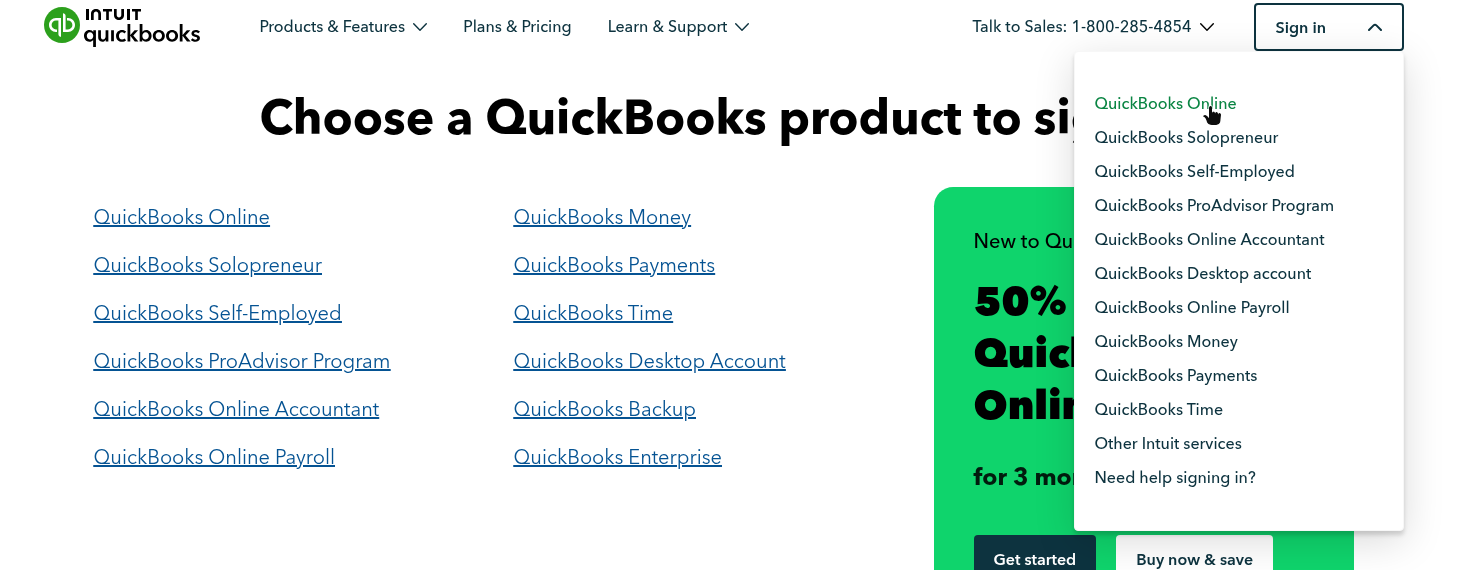
In the top-right corner, click Sign in, then select QuickBooks Online. (There are several QuickBooks products. Make sure you pick Online.)
Enter the username and password.
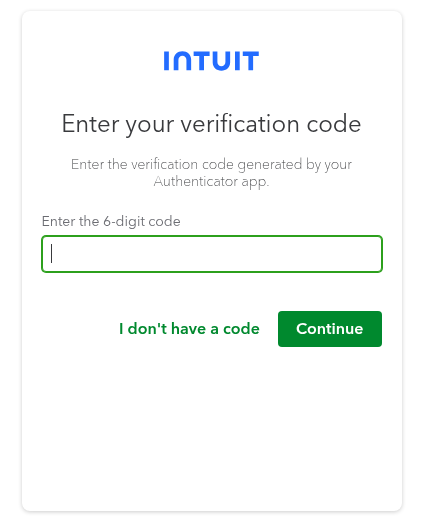
If you’re signing in to the main administrator account, QuickBooks may ask for one more thing:
A passkey: this is saved in the shared Bitwarden vault. Make sure you’re signed in to the shared Bitwarden account, and it will offer to fill in the passkey for you.
A 6-digit code: open the Ente Auth app and type in the code it shows for QuickBooks. The code changes every 30 seconds, so type it in quickly. (See TOTP for what this is.)
Ente Auth is a program on the computer, not a phone app. It’s installed on Evelyn’s computer (wsnorth) and Marva’s computer (wswest). If you’re on a different computer, go to one of those two to get the code.