Setting an Email Signature
A signature is the block of text (usually your name, role, and contact details) that Gmail adds to the bottom of your emails automatically.
Sign in to your Gmail account.
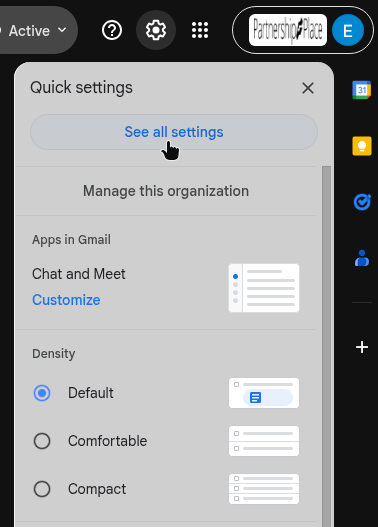
Click the gear icon in the top-right corner, then click See all settings at the top of the sidebar that opens.
Make sure you’re on the General tab (it’s selected at the top of the page). Scroll down to the Signature section.
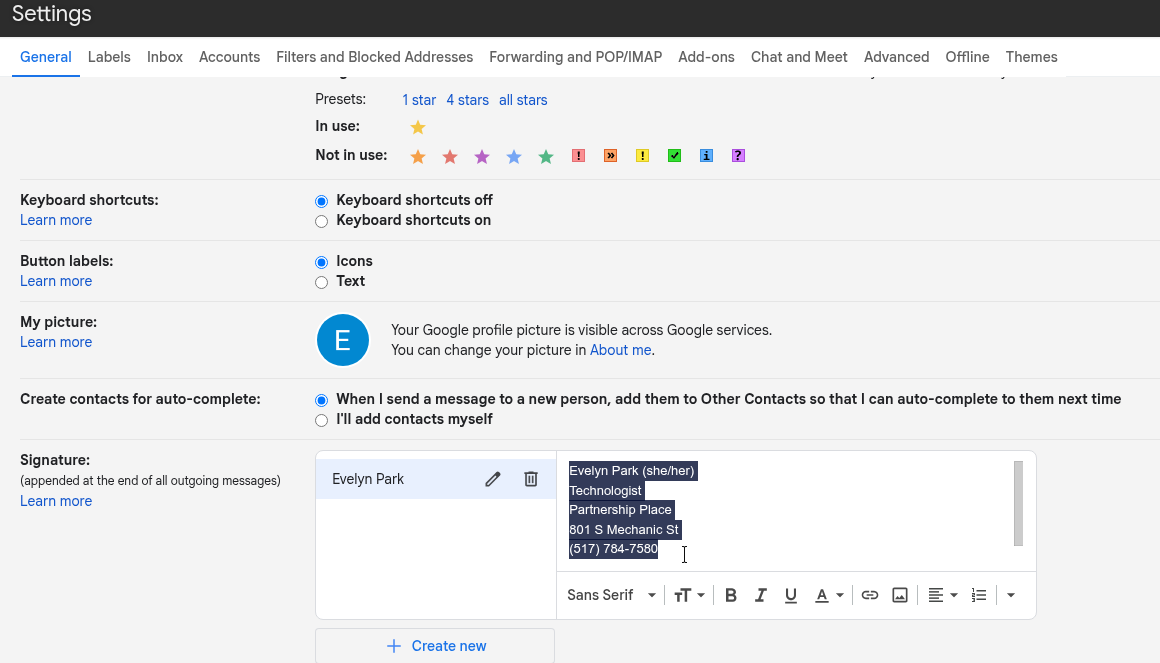
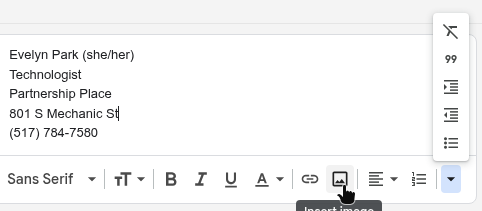
Type your signature in the box. You can use the toolbar under the box to add bold text, links, pictures, and so on.
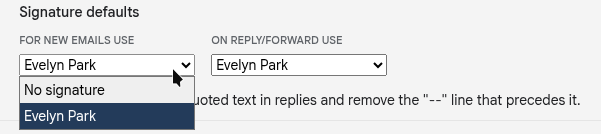
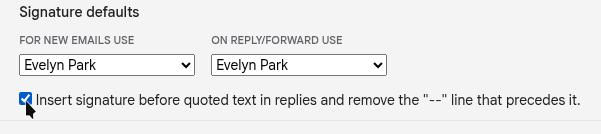
Below the box, use the two dropdown menus to choose your signature for new emails and for replies and forwards. (They can be the same.)
Tick the checkbox to put the signature before the quoted text in replies. If you don’t, your signature ends up below the whole email thread, where nobody will see it.
Scroll to the very bottom of the page and click Save Changes.
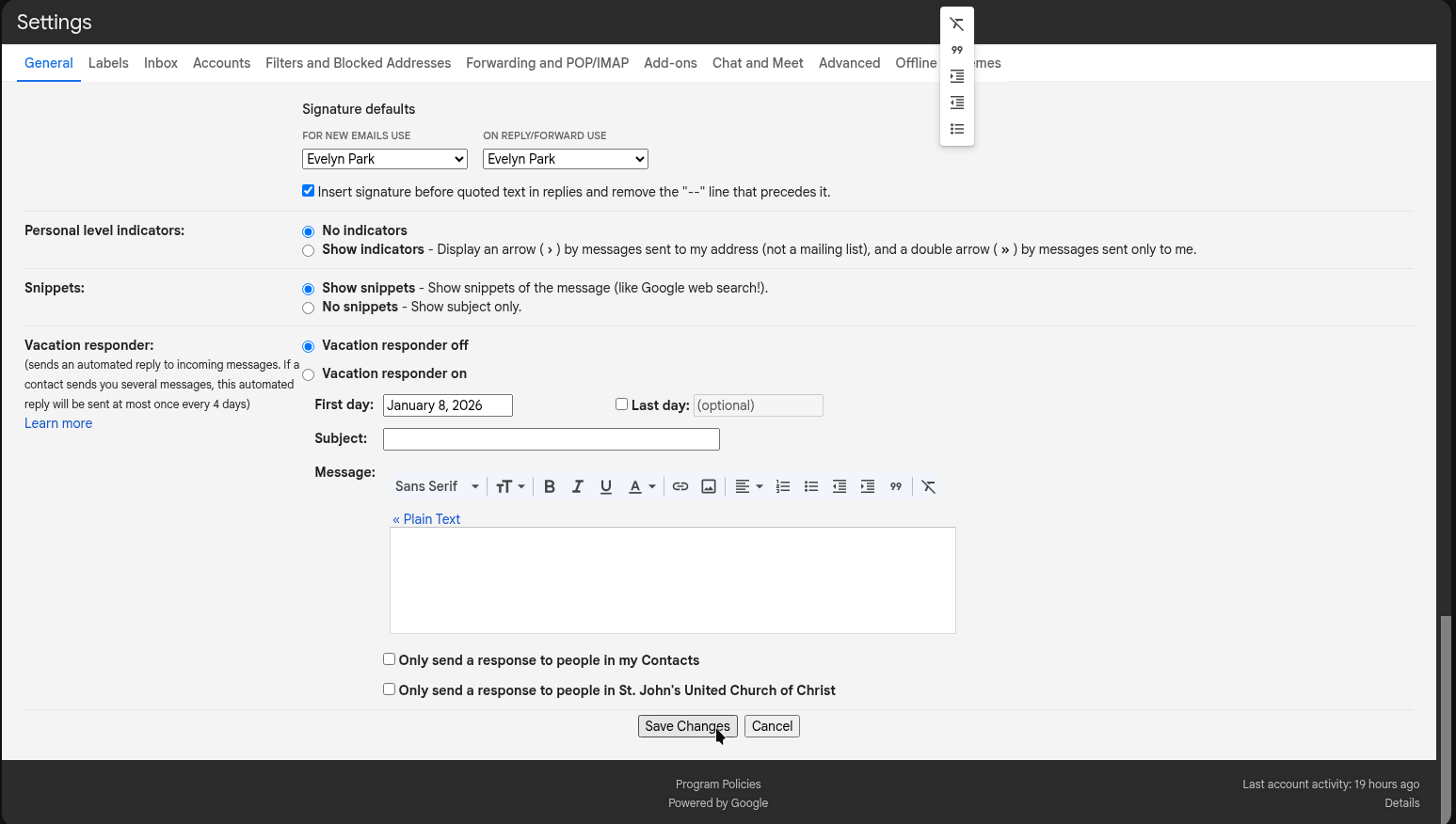
Don’t skip step 7. Gmail doesn’t save settings by itself. If you leave the page without clicking Save Changes, everything you did is lost.
To check that it worked, start a new email. Your signature should appear in it.